Switching a GMC Account to CSS
To fully activate the CSS service for a merchant, creating a price comparison website alone is not enough. You also need to complete two additional key steps: switch the Google Merchant Center account to CSS, and upload products to Sembot and add them to the price comparison website. Only when these elements are combined will the service work correctly and the user who clicks the “By: CSS_NAME” label in the ad will actually be able to see the store’s offer on your comparison website.
Step1. Adding products to the comprison website
The first step is to create a project in Sembot, add product data to it, and send the products to the price comparison website. This is very important, because products from every GMC account operating under CSS must be visible on the comparison website.
1. Create a project and add product data.
Remember! The available language versions of comparator websites depend on the language in which you create your project. For example, if your store is in Polish, select Polish as the language when creating the project to access Polish comparison websites. If your store operates in Ireland, select English to access English and Irish comparator websites. |
2. Go to the "Feed" tab.
3. Navigate to the top tab labeled "Add your products to comparators".
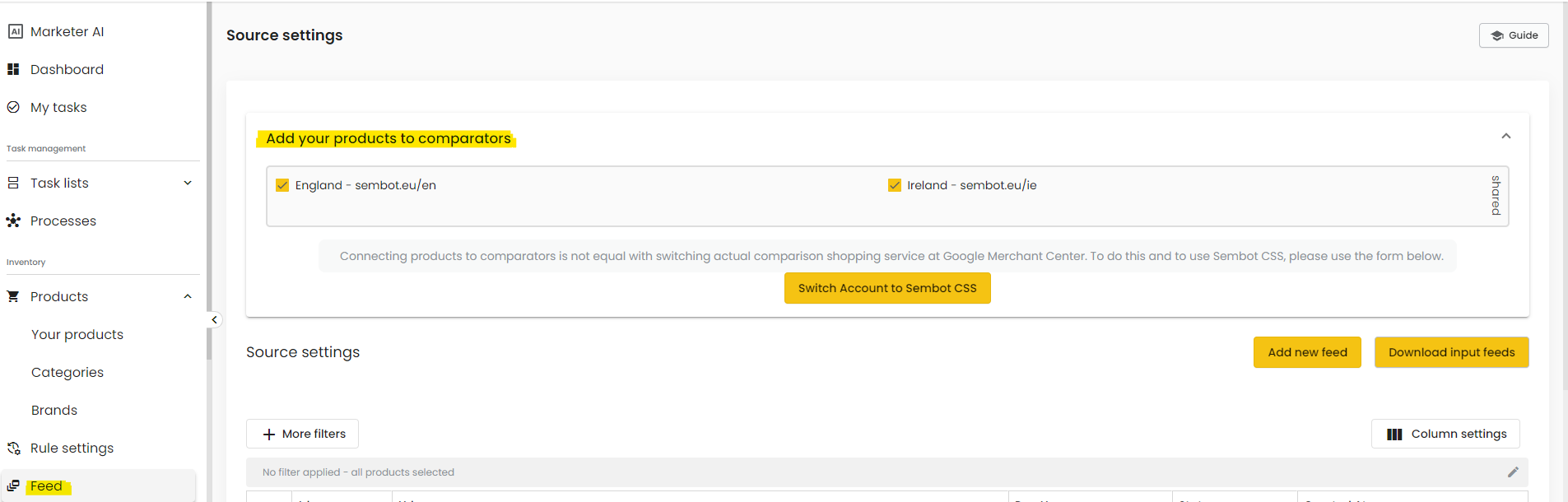
Remember! If you are using the WL CSS service, you will also find your own comparator website here. |
4. Select the comparator website. Check the box next to the chosen comparator site. Products on the site will be visible after 24 hours.
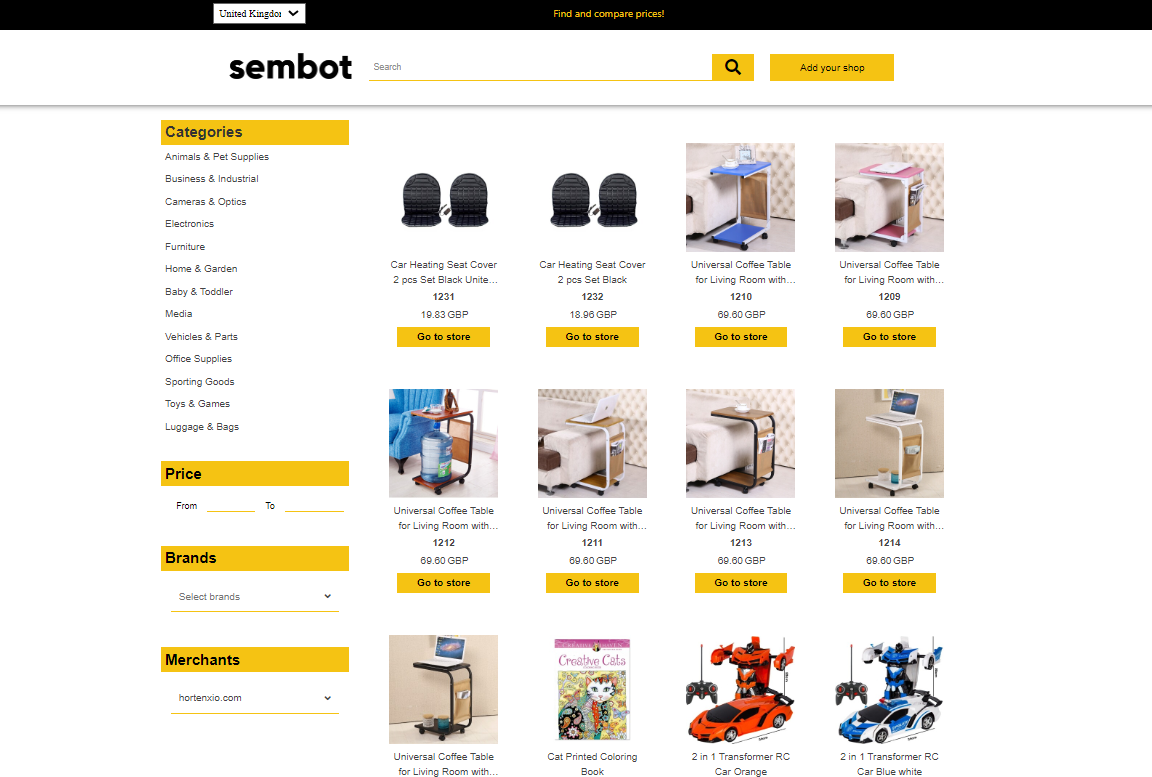
5. Visit the comparator website where you have added products and in the "Merchants" section, locate your store.
Step 2. Switching the GMC account to CSS
Once the comparison website is ready and the products have been added, you can move on to switching the Google Merchant Center account to CSS.
Method 1 – automatic migration(recommended for existing and active GMC accounts) |

1. Go to the Overview section for the selected domain in the CSS Center panel. Universal shortcut link to CSS Center: https://g.co/csscenter
Remember! This link only works for Google accounts connected to CSS Center. |
2. Click Add merchant.
3. Enter the ID of the GMC account you want to switch.
4. Select the type of switch (details below).
4.1. If you choose the full switch option (MCA sub-account), also enter the ID of your CSS multi-client account to which the GMC account should be switched.
5. Google has introduced a certain type of data validation. After filling in the fields, the Request switching button may still appear greyed out and display a lock icon when you hover over it, suggesting that the option is unavailable. However, after clicking it, the request will still be submitted, and you will see a confirmation message.
6. Once the switching process has started, the administrator of the GMC account being switched must accept or reject the invitation to change CSS. To do this, log in to the GMC account, click the notifications icon (the “bell”), and find the CSS change request. After accepting the invitation, a grace period for the previous CSS may still apply*. The final account switch will take place within a maximum of 14 days from the moment of acceptance.
7. You can check the status of ongoing switching processes in the menu on the left under Merchants → Switching history. This is also where you can set the grace period for your CSS.
* By default, the grace period when leaving a CSS is 14 days, but you can change it to anywhere between 0 and 14 days. In the case of Google Shopping, this period is set to 0 days, so the switch usually takes place within several minutes after the invitation is accepted. Keep in mind that during the grace period, the GMC administrator can change their mind and cancel the CSS switch.
Types of switching in automatic migration |
MCA sub-account
The account is fully switched under the CSS multi-client account and continues to operate as its sub-account. In practice, this means that the people managing the MCA CSS account gain full access to that GMC account. The account stops being standalone, but from the user’s perspective, everyday management remains unchanged.
This option is especially convenient when the same team manages both the CSS account and the clients’ GMC accounts. It works well, for example, for advertising agencies handling client accounts or for brands that manage their own accounts and want to move them under their own CSS.
Standalone account
The account is assigned to CSS but continues to operate as an independent standalone account. This means that administrators of the MCA CSS account do not gain access to it.
You can manage this type of account only from the CSS Center panel. It will not appear in the list of sub-accounts in the MCA CSS panel.
This solution works well when the merchant wants to use your CSS but does not want to grant access to their GMC account, for example because they manage it themselves or another team is responsible for it.
Remember! The main advantage of this method, automatic switching, is that the GMC account is switched to CSS together with all active campaigns and their full history. This means there is no interruption in account activity. The only limitation of this method is when the account administrator does not want to disconnect from the current CSS, whether that is Google Shopping or any other CSS partner. |
Method 2 – manually creating a sub-account under the CSS multi-client account |
If the merchant already has an active GMC account and uses it regularly, creating another new account is usually not a good solution. In practice, such a sub-account will be a completely new GMC account created under the parent CSS account, with no history, no previous data, and no established ad rank.
This option is mainly useful when you start working with a new merchant who has not used their own GMC account before. In that case, it is better to create the account directly under your CSS instead of first creating it in Google Shopping and then switching it later.
However, keep in mind that this method requires creating a new sub-account in CSS and GMC, and preparing new product campaigns, usually by duplicating the existing campaigns in the campaign editor. Even if the campaigns are copied from existing settings, Google’s algorithm still treats them as new campaigns.
As a result, the system has to collect data again and “learn” how the campaigns perform, so it may take several days for them to fully ramp up.
Adding a new account in MCA CSS |
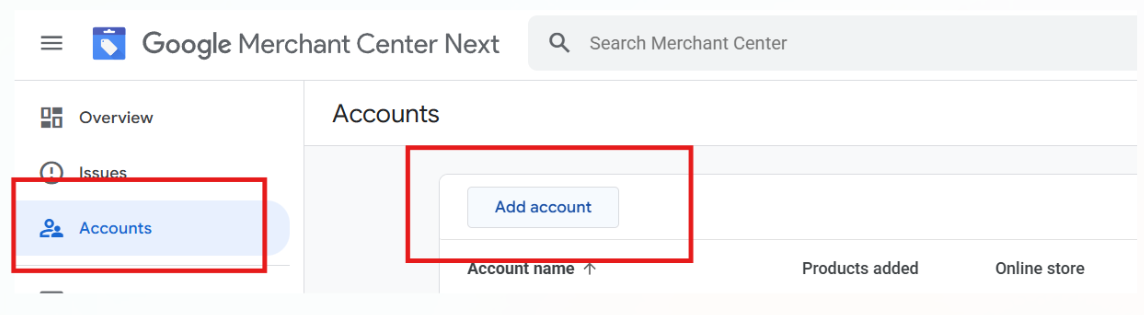
To add a new account, log in to your MCA CSS account and go to the Accounts tab. In the upper-right corner, click Add account and fill in the required details. Once you click Add account, it will appear in the account structure.
If you want to use existing campaign then you need to use desktop version of the Google Ads editor since web interface doesn’t let you switch the merchant ID.
Go to editor and duplicate currently existing campaigns
Switch the merchant ID of the duplicated campaigns to the merchant ID of newly
created sub-account in GMC
Remember! However, this is the only option if you do not want to disconnect the account from another CSS or if you want to use more than one CSS at the same time. |
Was this article helpful?
That’s Great!
Thank you for your feedback
Sorry! We couldn't be helpful
Thank you for your feedback
Feedback sent
We appreciate your effort and will try to fix the article