Dashboard
A dashboard is an interactive interface that allows for the visual presentation of results from connected data sources such as Google, Facebook, or Microsoft. The displayed information is organized into charts, tables, Key Performance Indicators (KPIs), and other visual elements, making data interpretation easier and more intuitive.

Configuration
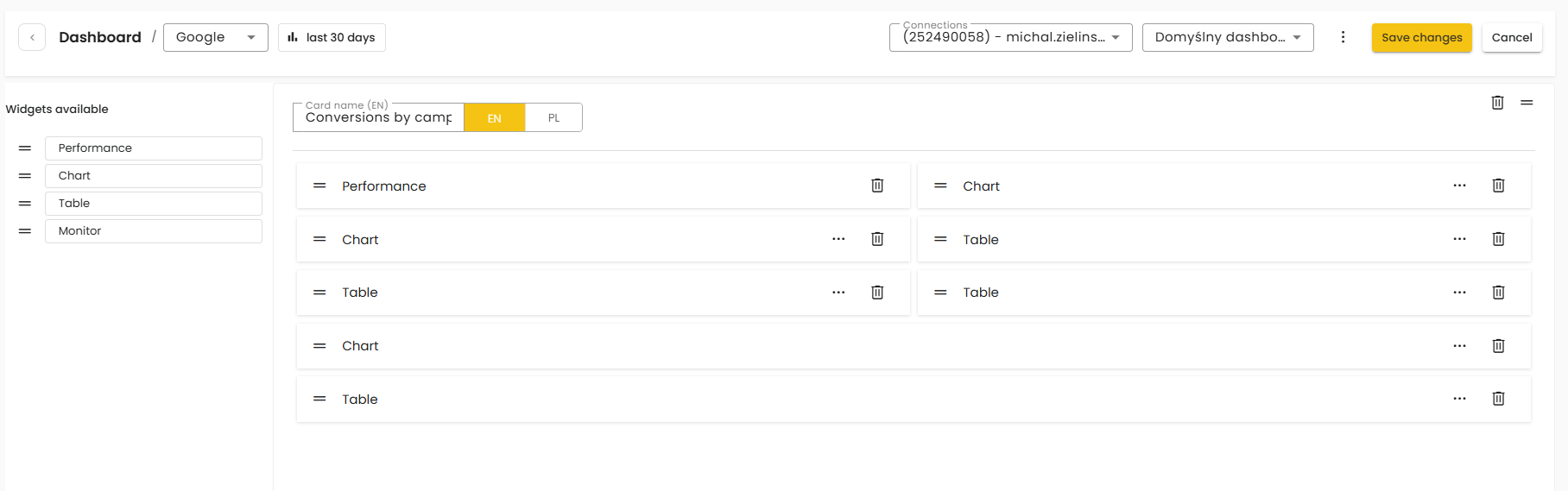
The dashboard view can be customized by the user. To do so, switch to edit mode by clicking “Customize” in the top-right corner. In edit mode, you can:
add widgets to the view from the “Available widgets” list on the left (e.g., Performance, Chart, Table, Monitor),
arrange widgets on the dashboard (change their order and placement within sections/tabs),
remove unnecessary widgets (trash icon next to a widget),
configure widget content via the “…” menu—for example, select which data should be displayed.
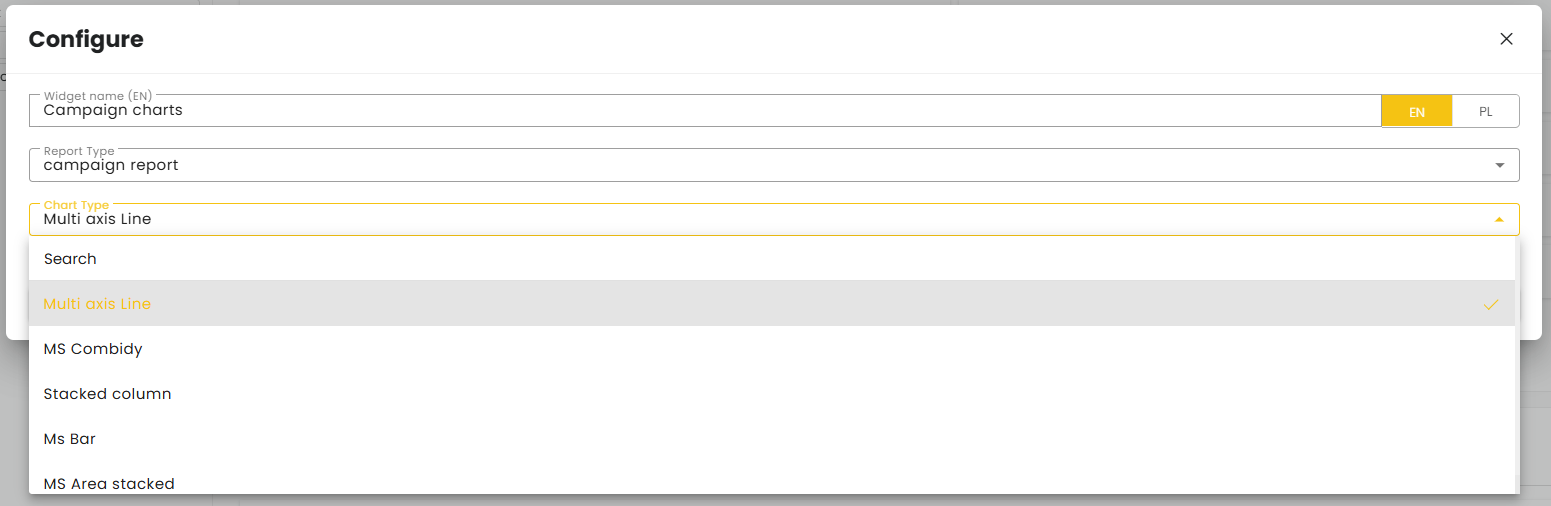
Each widget can be further adjusted in the “Configure” dialog, where you can:
set a widget name (with separate language versions, e.g., PL/EN),
select the Report Type, i.e., the data source (e.g., Campaign report, Ad group report, Keyword report).
The dashboard is organized into tabs (sections with their own set of widgets). You can add a new tab by clicking “+ Add new tab” at the bottom of the tab list.
After adding a tab, you can:
set its name (separately for PL and EN),
add widgets to it (e.g., Table and Chart),
reorder widgets within the tab,
remove widgets or the entire tab (trash icon).
Once finished, you can apply the changes by clicking “Save changes” or exit without saving by selecting “Cancel.”
Was this article helpful?
That’s Great!
Thank you for your feedback
Sorry! We couldn't be helpful
Thank you for your feedback
Feedback sent
We appreciate your effort and will try to fix the article