Summaries
The Summaries module enables users to generate reports based on previously configured dashboards. It provides report templates that reflect the layout and data scope of the dashboards, ensuring reports remain consistent and do not require manual reconfiguration each time.
Reports can be generated for:
a selected time period (any date range),
selected channels (e.g., Google Ads, Meta Ads, Microsoft Ads).
Generated reports can be sent on a recurring schedule via email. Users can configure the email content and optionally enrich it with contextual information.
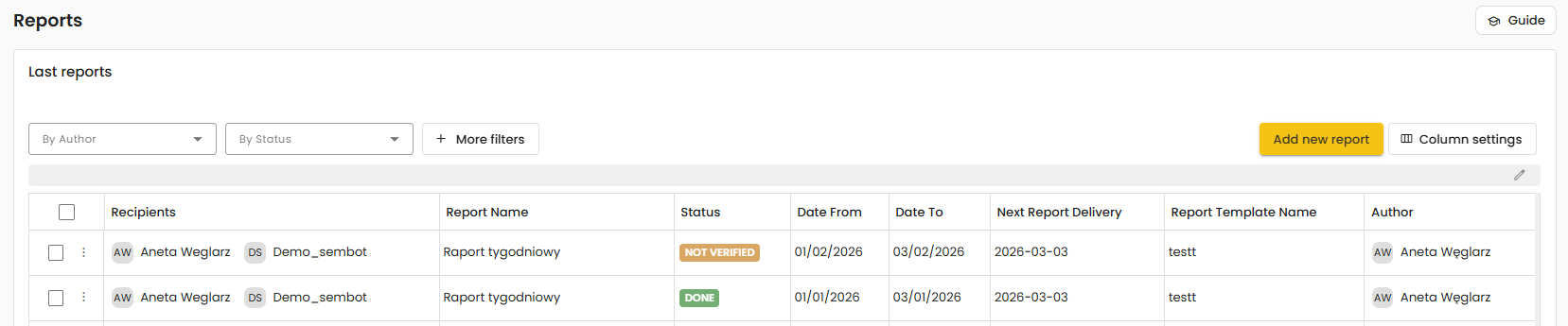
Report Configuration
To configure a new report, click “Add new report”. The “Add new report” window will open, where report and delivery settings must be completed.
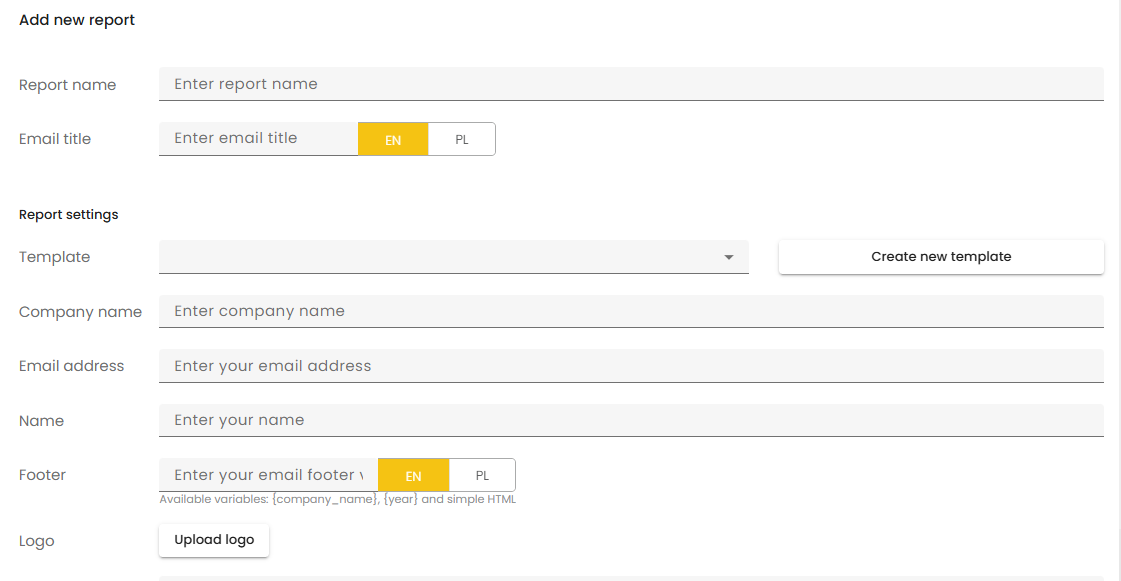
1) Basic Information
Report name – internal report name (visible in the reports list).
Email subject – subject line of the email sent with the report. This field supports EN/PL language versions.
2) Report and Sender Settings
Template – select a report template based on previously configured dashboards.
Alternatively, click “Create new template”.Company name – used in the report content and/or email footer.
Email address – sender email address.
Name – sender name (email signature/display name).
Footer – email footer content (supports EN/PL versions).
Logo – upload a logo using “Upload logo”.
3) Recipients
Users – search and add internal recipients (by name or email).
External emails – add recipients outside the system.
4) Reporting Scope and Delivery Schedule
Starts on / Ends on – validity period of the schedule (calendar selection).
Date range – data range included in the report (e.g., last 7 days).
Frequency – how often the report is sent (e.g., weekly).
Aggregation – data aggregation method (e.g., Aggregate data from sources).
Active – enable/disable automated deliveries (deliveries are generated according to these settings).
5) Data Sources
Connections – select the connections/channels from which the report should retrieve data (connection list with identifiers and email/account references).
6) Save Configuration
At the end:
click “Apply” to save the report, or
click “Cancel” to exit without saving.
Report Verification
Once a recurring report is enabled, the system automatically generates tasks in the Tasks module. These tasks are created according to the defined schedule and act as reminders that a report is ready to be sent. Before delivery, the report must be reviewed and approved, allowing the user to validate the data and optionally add commentary.

1) Automatic Task and Summary Creation
When a task is generated, the system also creates a corresponding report summary. As a result, the report appears in the Summaries module as an item awaiting verification.
2) Verifying a Report in the Summaries Module
In the Summaries list, the user can identify reports that require action. From the context menu, the option “Verify report” is available.
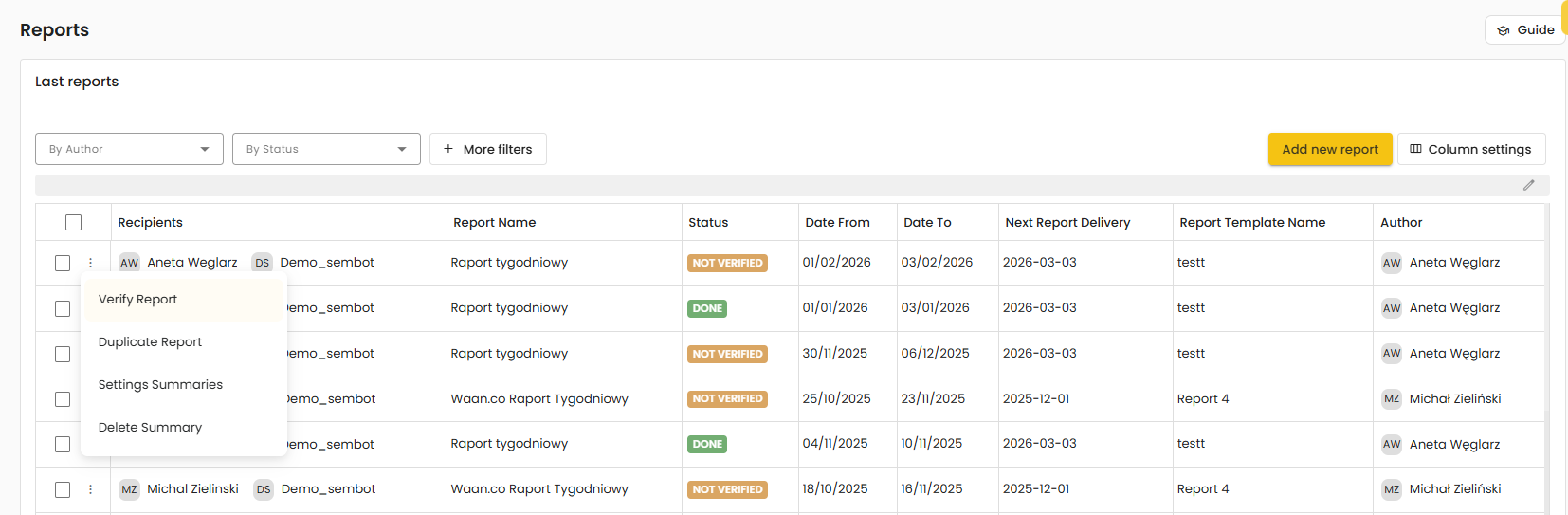
Selecting “Verify report” opens the verification view, providing access to:
the report date range,
the report name and email subject (with language versions),
the recipient list (internal users and external emails),
the full report content (sections/tabs and data sourced from the selected connections).
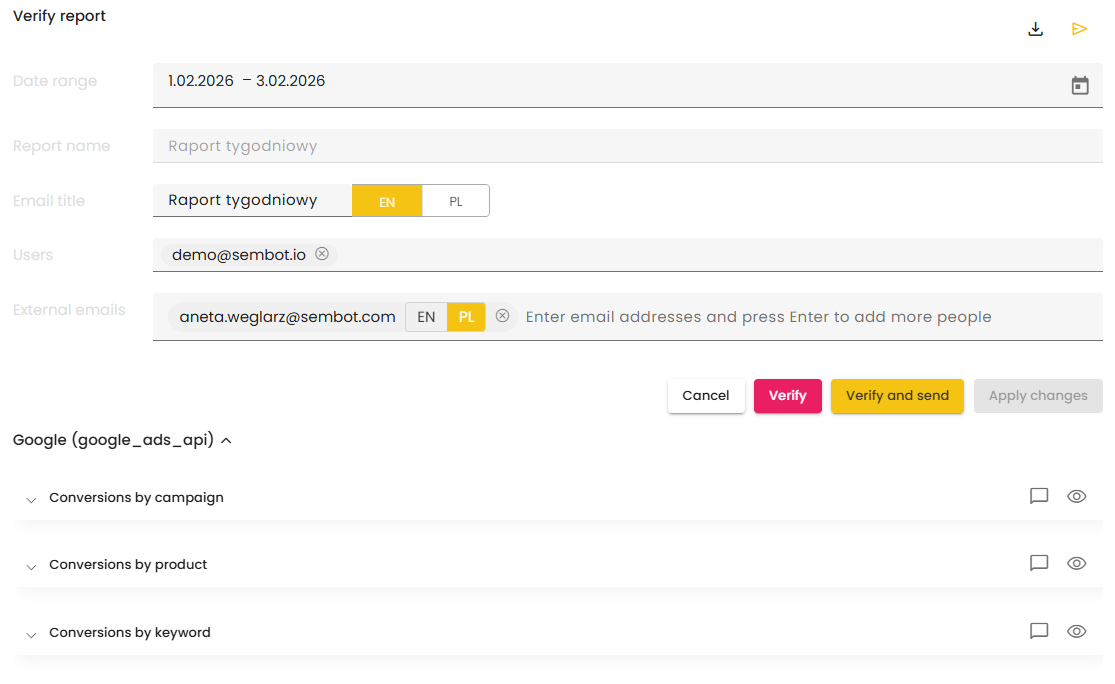
3) Adding Comments and Approving Changes
During verification, the user can:
add comments to the report (e.g., explanations, conclusions, recommendations),
approve the report after review.
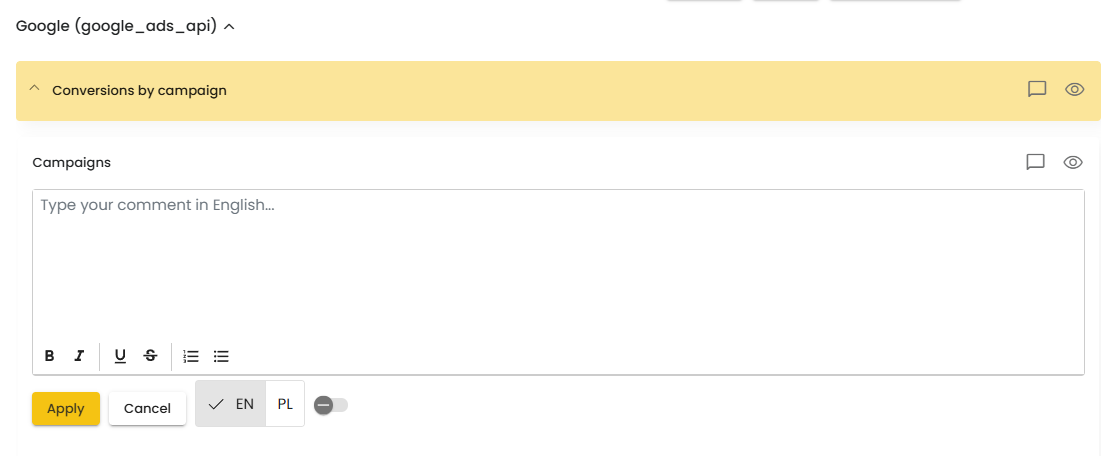
Available actions include:
“Verify” – confirm/approve the verification,
“Verify & send” – approve and send the report immediately,
“Cancel” – exit without applying changes.
4) Email Delivery to Recipients
After approval, the system sends the report via email to the recipients defined in the report configuration (internal users and external email addresses). This ensures a repeatable and controlled reporting process without requiring manual preparation of the email outside the system.
Was this article helpful?
That’s Great!
Thank you for your feedback
Sorry! We couldn't be helpful
Thank you for your feedback
Feedback sent
We appreciate your effort and will try to fix the article